In this assignment, you will install the development tools required in this course to do web application development: the J2EE edition of Eclipse, Apache Tomcat, and the Firefox (or other) web browser. (There are other handy tools that you'll install along the way, but Eclipse and Tomcat are the big ones).
Once installed, you'll create a simple web application to verify that your development environment is functional.
Note: There are of course various other tools that can be used, and you may already be using others, but for this course, you'll need to create web applications that can correctly be deployed and run in an Apache Tomcat/web browser environment.
In this course, you'll be creating web applications within a J2EE version of the Eclipse development environment.
You likely have the "standard" edition of Eclipse already installed on your laptop, which is referred to as the J2SE ("SE" for Standard Edition). For web application development, you need the J2EE (Enterprise Edition) of Eclipse. You can have multiple releases of Eclipse installed on your laptop, provided you use different file directories for the various installations. The J2EE edition of Eclipse tend to startup more slowly due to the larger number of features - so you may want to keep your J2SE edition of Eclipse around for non-web development.
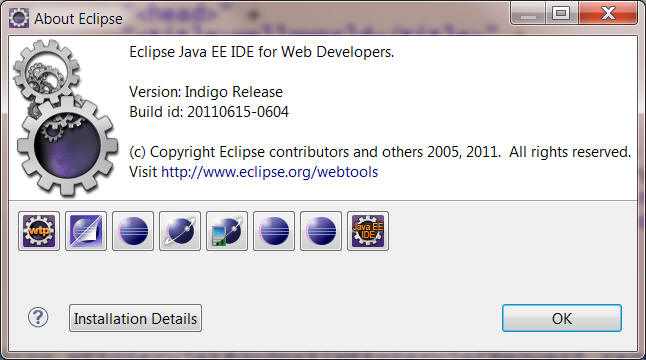
To get the J2EE edition of Eclipse (the latest is the Indigo release), follow this link to the Eclipse IDE for Java EE Developers website, and select the appropriate download (the Windows 64-bit version for running on Windows 7). When installed and run, the "About Eclipse" dialog should look like this:
Tomcat is a Container for Java-based web applications. You need to install Tomcat on your laptop in order to test/execute the Java-based web applications you'll be developing in this course.
Tomcat is the Apache Software Foundation's implementation of Sun's Java Servlet and JavaServer Pages Container specifications. There are other competing implementations (Apache Geronimo, Red Hat JBoss, Oracle WebLogic, IBM WebSphere, etc) that add certain features beyond the basic specifications (which we won't need for this course). Tomcat typically runs alongside an Apache HTTP Server, but it is fully capable of running as a standalone web server for small web applications, so you'll only need to install Tomcat on your laptop.
The current version of Tomcat at the time of this writing was 7.0.20, but by the time you read this, there may be a later version available. (Note: Version 7 of Tomcat requires Java SE 6.0, so you may have to update your Java environment if you have an older JRE).
JRE Version Note: If the target web server uses JRE 6.0, but sure to configure the Eclipse workspace to use JRE 6.0 as well.
To get Tomcat, select and download the 64-bit Windows zip (pgp, md5) package from the Apache Tomcat website. (Note: This link is to the 64-bit distribution of Tomcat for installation on the 64-bit version of Windows 7. There are other distributions available, but you should use the one in the provided link unless you really know what you are doing.)
Once downloaded, extract the files into a WRITEABLE file directory on your laptop - for example: C:\Apache\apache-tomcat-7.0.20-windows-x64. Note: If you're using Windows 7, it is recommended that you avoid installing Tomcat to a system folder such as C:\Program Files, since you'll have to modify the security permissions to allow write-access to files and subfolders in that directory.)
In order to execute and test the Java Servlets and JSPs you'll be developing, you'll need to configure Eclipse to use a Tomcat servlet container.
1. From the Window menu of Eclipse, select Preferences. In the Preferences window, expand Server and then select Runtime Environments (Note: the following dialog shows an existing Tomcat 6.0 runtime environment that already existed on my system - you will likely not see any existing runtime environments when this dialog first appears).
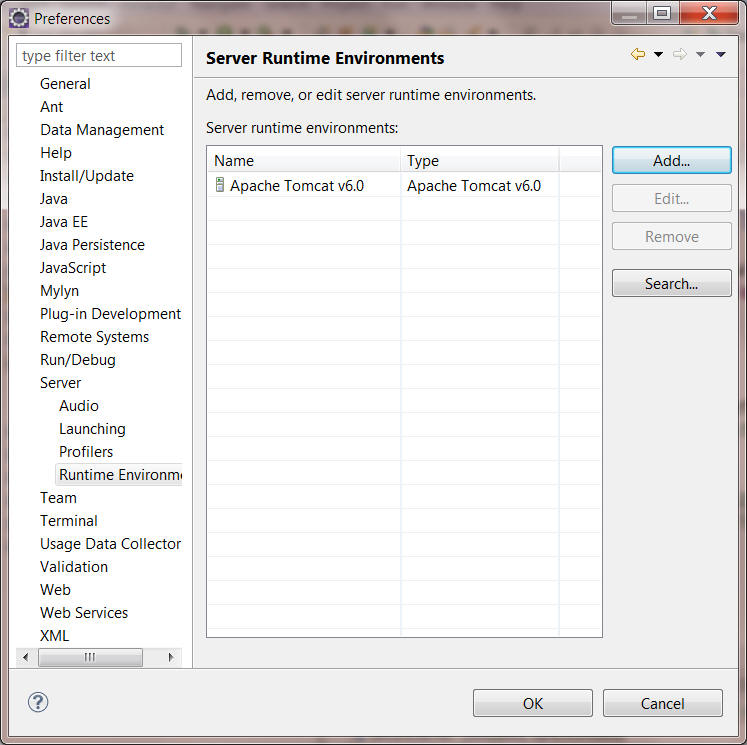
2. On the Server Runtime Environments page, click Add. The New Server Runtime Environment wizard opens:
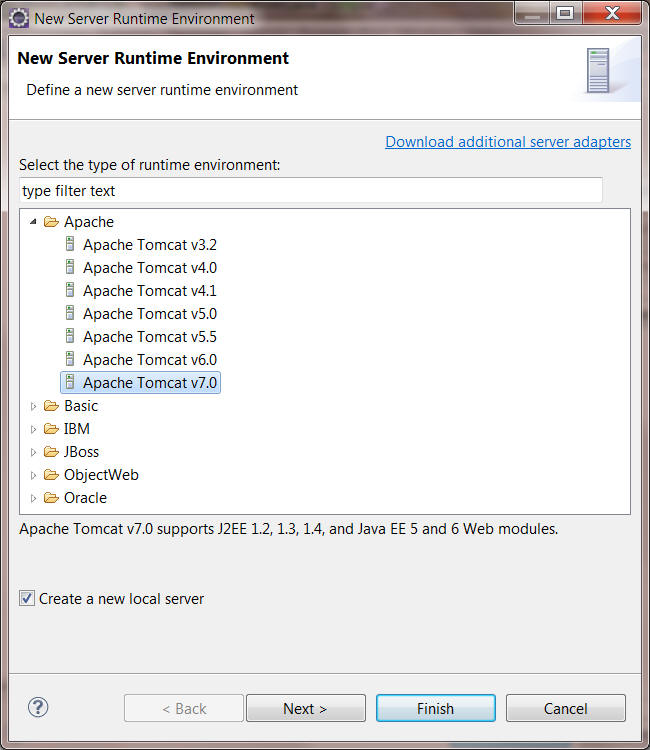
3. Make sure the Create a new local server checkbox is checked as shown above. Then, select Apache Tomcat v7.0, and click Next. The following dialog appears:

4. In the Tomcat installation directory text box, fill in the location of your Tomcat installation.
Note: You can find these same instructions for creating a Tomcat server within the Eclipse Help pages by searching for "tomcat".
Before proceeding with part 2 below, validate and demonstrate the Tomcat startup to your instructor. To start it, first create a Servers console by selecting Window > Show View > Servers. Once the Servers console appears, you should be able to click the "play" button after selecting the server (Note: you can create more than one server, but you should only have a single server at this point).
Follow your instructor's interactive demonstration and walk-through on creating a web application.
When you have finished, demonstrate the results, and make sure you get your assignment checked off as "completed".